
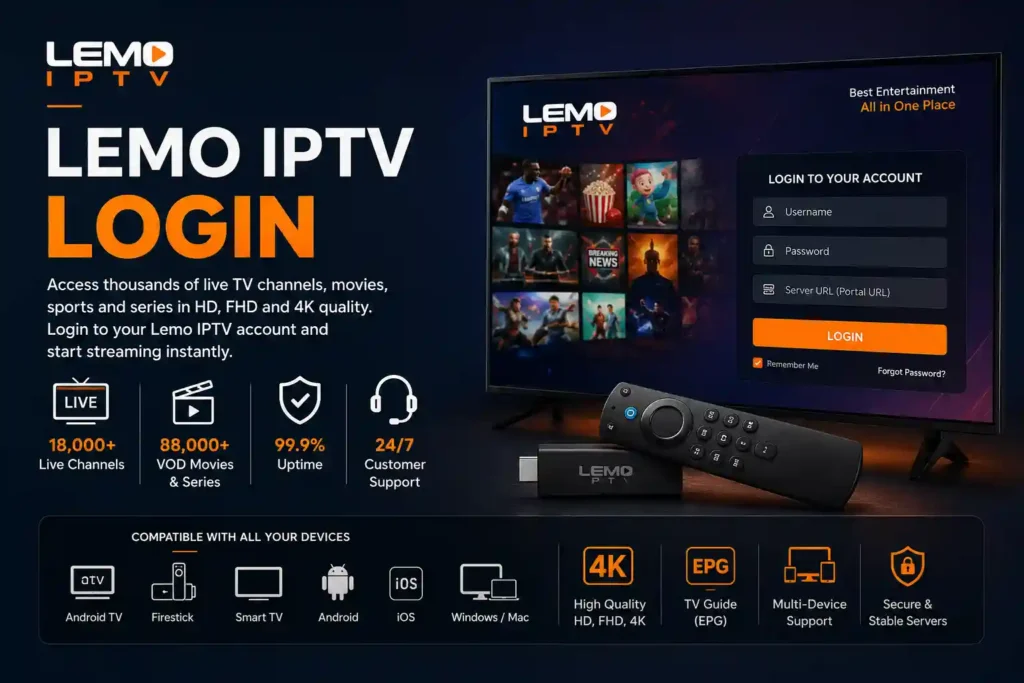
If you’re looking for the Lemo IPTV login process, you’ve come to the right place. Whether you’re a new user or an existing subscriber, accessing your Lemo IPTV account is quick and simple. Lemo IPTV provides access to thousands of live TV channels, movies, sports events, and TV series through a secure login system designed for a seamless streaming experience.
In this guide, we’ll explain everything you need to know about Lemo TV login, including how to sign in, troubleshoot login problems, and access your IPTV service on different devices.
The Lemo IPTV login system allows subscribers to securely access their IPTV subscription using their account credentials. After purchasing a subscription, users receive their login details, which can include:
Username
Password
Server URL or Portal URL
Activation code (depending on the application)
These credentials allow users to connect to the Lemo IPTV servers and start streaming content instantly.
To complete your Lemo IPTV login, follow these simple steps:
Open your Lemo IPTV application.
Select “Add User” or “Login.”
Enter your provided username.
Enter your password.
Add the server or portal URL if required.
Click “Login” or “Connect.”
Once authenticated, your IPTV channels and content library will load automatically.
Some versions of the Lemo IPTV app support activation code login:
Launch the Lemo IPTV app.
Select “Activate Device.”
Enter the activation code provided after purchase.
Confirm activation.
Restart the application if necessary.
Your subscription will then be linked to your device.
Lemo IPTV supports login access on multiple devices, including:
Amazon Firestick
Android TV Boxes
Smart TVs
Android smartphones and tablets
NVIDIA Shield TV
Google TV devices
Windows PCs
macOS computers
This flexibility allows users to access their subscriptions from virtually anywhere.
Sometimes users may experience issues during the Lemo IPTV login process. Here are the most common problems and their solutions.
If you receive an authentication error:
Verify that your login credentials are entered correctly.
Ensure there are no extra spaces.
Check whether your subscription has expired.
If the app cannot connect:
Verify your internet connection.
Restart your device.
Confirm that the server URL is correct.
Try using a VPN if your internet provider blocks IPTV traffic.
If your application freezes:
Force close and reopen the app.
Clear the application cache.
Restart your streaming device.
Update the Lemo IPTV application to the latest version.
If your Lemo IPTV login credentials stop working, your subscription may have expired. To continue streaming:
Check your subscription status.
Renew your IPTV package.
Wait for activation confirmation.
Log in again using your existing credentials.
Most renewals reactivate your account within minutes.
Lemo IPTV offers numerous advantages for streaming enthusiasts:
Thousands of live TV channels
Sports, movies, and entertainment content
High-quality HD, Full HD, and 4K streams
Electronic Program Guide (EPG)
Fast server connections
Multi-device compatibility
Regular content updates
Reliable customer support
These features make Lemo IPTV one of the preferred IPTV solutions for users worldwide.
Your login details are typically sent by email after purchasing your subscription.
This depends on your subscription plan and the number of allowed connections.
Common reasons include expired subscriptions, incorrect credentials, internet issues, or server maintenance.
Password changes depend on your IPTV provider’s account management system.
The Lemo IPTV login process is designed to provide fast and secure access to your IPTV subscription. By using the correct credentials and following the recommended setup instructions, you can enjoy uninterrupted access to live television, sports, movies, and premium entertainment content across all your devices.
If you experience any issues during the login process, verify your account information and contact customer support for assistance.